When constructing a FRED model the intention is not only to represent the geometry accurately, but to describe (sufficiently, for the application) how light interacts with each surface in the system. The surface interaction is governed by the combination of a raytrace control and a set of properties (coating, materials, scatter models, etc.) which represent the physical characteristics of the object. Propagation of the optical field leaving a given surface is determined by the which set of properties are assigned to the object and which types of interactions are allowed by the raytrace control. Raytrace controls are assigned to objects in the same way as the object's physical properties, so no distinction will be made between them regarding the use of "property assignment" for the remainder of this topic. It is the purpose of this help topic to show the various methods of assigning properties to individual items and groups of items using FRED's object tree.
In addition to the object tree based methods described below - properties can be assigned to multiple surfaces using the Edit / View All Surfaces dialog.
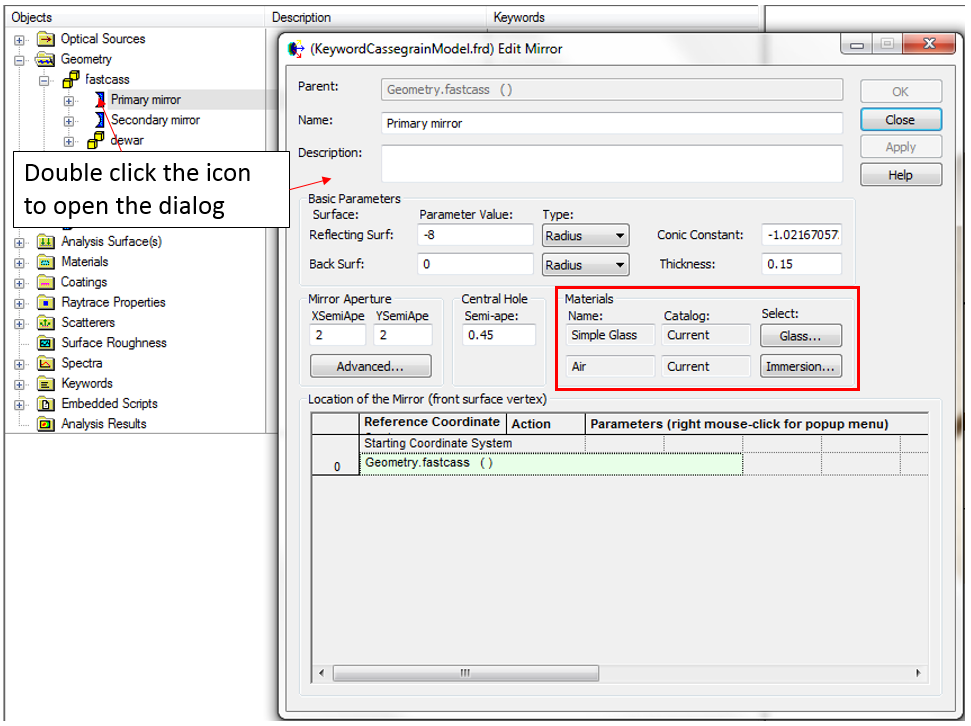
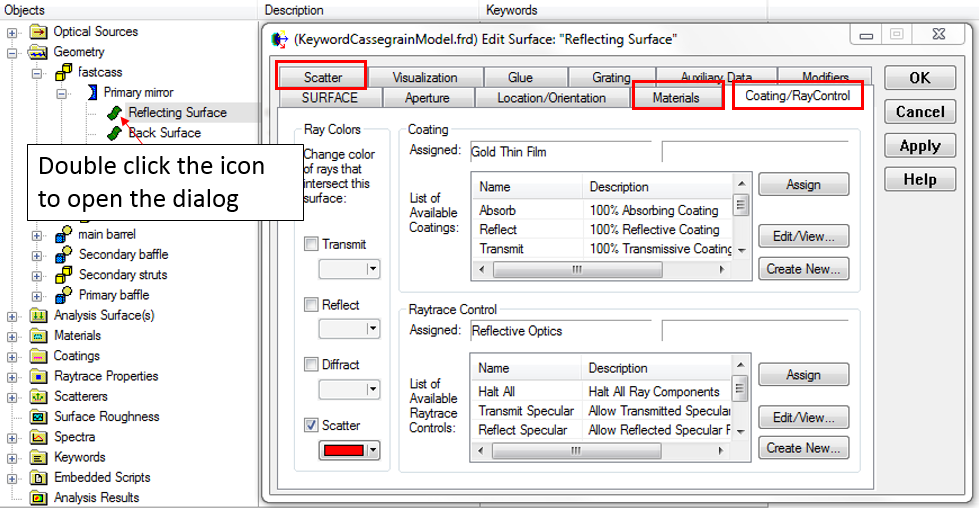
Depending on the type of object that was created, properties can be assigned to the object using its dialog. To open the dialog for a given object, double click on the object's icon in the object tree. This is shown in the images below for a mirror element and an individual surface. In the dialog for the mirror element, the properties that can be assigned are the materials. In the surface dialog, all property types can be assigned by first selecting the appropriate tab on the dialog and then using the assign/remove buttons on each tab.
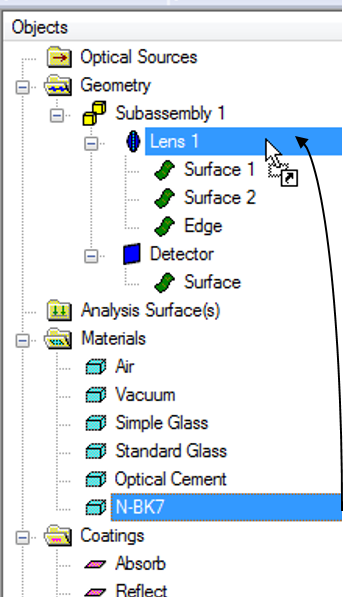
It can often be more convenient to assign properties to an object, or group of objects, by using a drag and drop approach on the object tree. An individual property (material, coating, raytrace control, etc.). To perform a drag and drop assignment, select a property on the object tree with the mouse and hold down the left mouse button while dragging the property up the tree to the drop target. Once the drop target has been reached, release the mouse button to trigger the assignment operation. It is important to note that the property assignment is inherited by all objects which are descendants of the drop target node. In the example below, a material node is dropped onto a lens element and because of the inheritance feature each surface (Surface 1, Surface 2 and Edge) inherits the material property assignment.
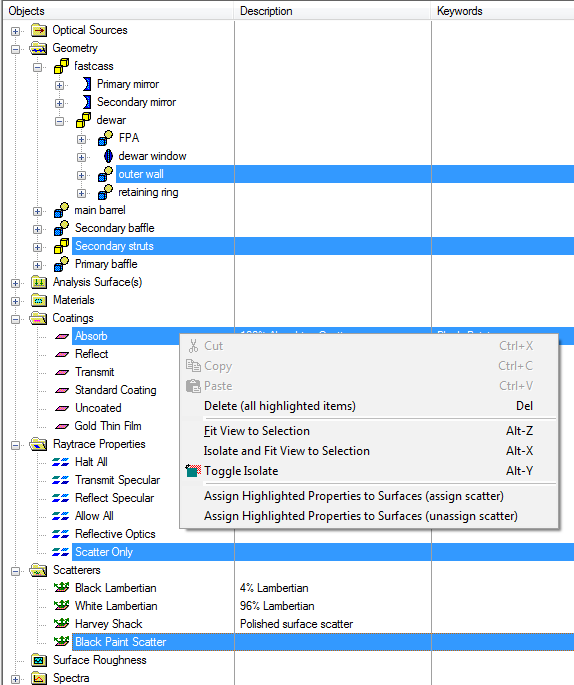
While the dialog method of assignment is sufficient for single surfaces and the drag and drop method is sufficient for groups of surfaces descended from the same entity, the multi-select assignment method is useful for assigning common properties to groups of objects that are not descended from the same node. Consider, for example, the scenario shown below where the "outer wall" components of the "dewar" object and the components of the "Secondary struts" subassembly all have the same properties; an absorbing specular coating, black paint scatter model and a scatter specific raytrace control. These properties could individually be assigned to the outer wall custom element and the Secondary struts subassembly independently but that results in 6 drag and drop operations. The multi-select assignment method accomplishes this in one operation. To perform the multi-select assignment operation:
Some additional rules apply to the use of this feature:
|