|
Control
|
Inputs / Description
|
Defaults
|
|
Logical Parent
|
Logical parent of this source in the Tree View. Note that Logical parent is different than the location parent.
|
Optical Sources
|
|
Name
|
Name of the source.
|
Source n
|
|
Description
|
Description of the source (optional).
|
|
|
Immersion Material
|
|
Name
|
Name of material in which rays are immersed.
|
Air
|
|
Catalog
|
Specifies the catalog containing the immersion material currently in use.
|
Current
|
|
Select
|
Opens a dialog for changing the immersion material.
|
|
|
Additional Phase to Add to the Source
|
|
Phase
|
Add phase (in waves) to the rays prior to tracing .
|
0
|
|
Post-Creation Ray Propagation Specification
|
|
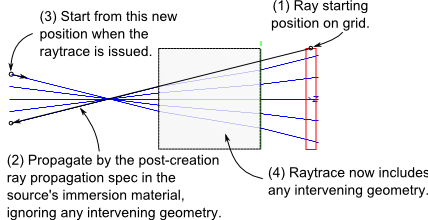
When a source has the "No Extra Propagation" post-creation ray propagation specification applied, the rays are simply created at the source grid location with the requested position and direction. Any other post-creation ray propagation specification is applied after those rays are created at the grid and has the effect of propagating each ray along its direction vector according to the specification (by path length, or to an X,Y,Z point, etc.). These rays begin the raytrace from this new position. It is important to note that the post-creation ray propagation ignores any other geometry in the model and is applied in the source's immersion material.
|
|
No Extra Propagation (do nothing)
|
This selection is made if no propagation is required. Default.
|
Selected
|
|
Propagate by
|
Rays are propagated along their trajectory by the given distance in the specified direction. If the Ray trajectory is perpendicular to the propagation direction selected then the ray is not propagated.
|
Not Selected
|
|
Propagate to
|
Rays are propagated along their trajectory to their closest approach to the specified location. If the Ray trajectory is perpendicular to the propagation direction selected then the ray is not propagated.
|
Not Selected
|
|
Propagate to optical path length
|
Rays are propagated along their trajectory by the specified optical path length. Optical path length is equal to the physical distance divided by the index of refraction, OPL=d/n.
|
Not Selected
|
|
Propagate to Point
|
Rays are propagated along their trajectory to their closest approach to the specified point.
|
Not Selected
|
|
Propagate to sphere
|
Rays are propagated along their trajectory to their closest approach to the surface of the specified sphere. Select negative or positive direction.
|
Not Selected
|
|
|
|
OK
|
Accept settings and close the dialog box.
|
|
|
Cancel
|
Discard settings and close the dialog box.
|
|
|
Apply
|
Apply settings and keep dialog box open.
|
|
|
Help
|
Access this Help page.
|
|