Analysis Surfaces can be "attached" to a source, geometry, or another analysis construct in the model, which we will refer to here as the "target node". When an Analysis Surface is attached to a target node, the analysis surface is (a) automatically moved to be located at the local origin of the target node, and (b) the Ray Selection Criteria of the analysis surface may be updated so that the ray filter is designated as "Rays on the specified surface". Subsequent analyses performed with the analysis surface will then have the correct spatial location and isolate the subset of rays that ended their raytrace on the target node.
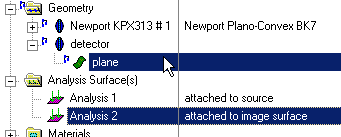
Expand the Analysis Surface(s) folder on the object tree and select an available analysis plane or create a new analysis plane is none is available. Using the mouse, drag and drop the selected analysis plane onto the surface or source of interest.
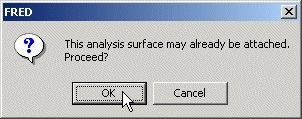
If the analysis plane was previously attached to another entity, a warning dialog will be displayed asking the user to confirm the new analysis plane attachment.
Click on OK to proceed or Cancel to halt the analysis plane attachment.
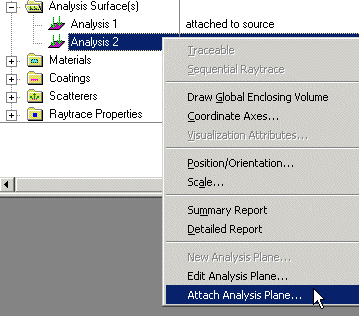
To open the analysis plane attachment dialog, right mouse click on an existing analysis plane in the object tree and select "Attach Analysis Plane" from the list of menu options.
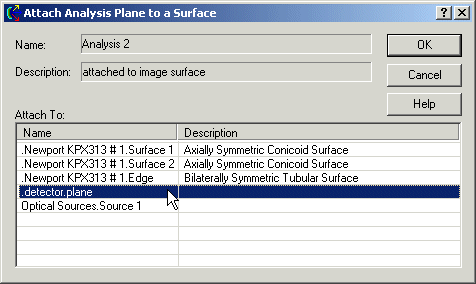
Select the appropriate surface or source for attachment select OK to accept and close the dialog. As with the drag and drop, a warning dialog will be displayed asking for an override if the analysis plane is already attached.
Attaching with multiple ray selection criteria When the ray selection criteria of an analysis plane includes multiple entries, FRED does not overwrite the ray selection criteria if the analysis plane is attached to a new entity. In the event that this occurs FRED will display a dialog with the following warning message:
The ray selection filter references other surfaces. You may with to edit the filter.
However, the location of the analysis plane will move to be coincident with the local coordinate system of the new entity and could lead to unexpected results if the ray selection criteria is not edited and verified manually.
Attaching to imported CAD surfaces CAD surfaces do not have the same coordinate system that native FRED surfaces do, which means that attaching an analysis surface to an imported CAD object does not follow the standard method. It will be necessary to specify the desired "Move coordinate system origin to surface" option on the CAD import dialog in order to endow the CAD object with a local coordinate system. If the surface is a "Trimmed Parametric" then it will be necessary to right mouse click on the surface, select "Trimmed Parametric Surface Set Expanded View (recursive)" from the list menu and then drag/drop the analysis plane onto the B-Spline surface marked as untraceable. For an example of this process, please see the Import CAD help topic.
For more detailed descriptions of Analysis Surfaces and their uses, select from among the following links. Ray Selection Criterion Dialog
|