|
|
Navigation: Installation and Licensing > FRED Installation and Licensing
FRED Installation and Licensing
Contact Us: fredsupport@photonengr.com
|
Description
This help topic describes the procedure for accessing and executing the FRED installation file, provides descriptions of the available installation options and command line installation tools, and introduces the software license protection and configuration options.
FRED Installation File
Only a single executable file is required to install FRED regardless of the purchased license type (Standard, Optimum, MPC). The installation executable is distributed through the Photon Engineering website at www.photonengr.com/download, providing current and legacy versions for both 32-bit and 64-bit platforms. Customers on a current technical support contract should install the current version of the program using the installer appropriate for their platform (32-bit or 64-bit). Customers whose licenses are not on a current technical support contract are eligible to install the most recent version that was released during their last active technical support period.
Check for Updates
It is possible to check for updates within FRED itself by starting a FRED instance and then navigating to Help > Check for Updates. When requested, check for FRED version updates over an internet connection and report to the user whether a new official release version or developmental version of the product is available. If new versions are available, the user may select the Download option to open a web browser window to the appropriate download page on the Photon Engineering website. Note that FRED does NOT automatically check for updates over an internet connection. The user must specifically request the communication via the Help menu option.
FRED Installation Procedure
The FRED installation procedure described below applies to a client PC that needing to run the FRED software. Additional installation steps required to properly configure a Network license are described in the respective help topics for your license protection type (SuperPro or Sentinel).
|
1. Download the FRED installation file from the Photon Engineering website at www.photonengr.com/download
|
|
2. Execute the installation file with Administrator privileges (right mouse click option on the installer file)
|
|
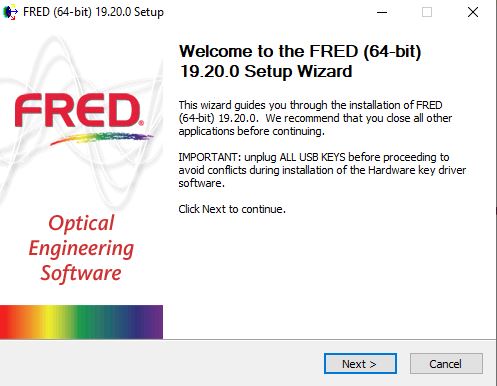
3. At the first prompt, confirm that the correct version is being installed and unplug any USB dongles that may be attached to the client PC. Press the "Next >" button.
|
|
|
|
4. At the next prompt, read the EULA and press either "I Agree" to accept the terms and continue or "Cancel" to terminate the installation process.
|
|
.jpg)
|
|
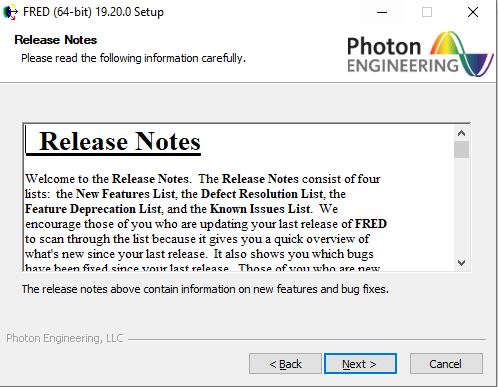
5. The next prompt allows review of the software development release notes describing the new features and defect resolutions (bug fixes) contained in the current release and all previous releases. The release notes are also available for review from within FRED itself after installation is completed. Press "Next" to continue the installation.
|
|
|
|
6. The next prompt allows the user to select which components should be installed on the client PC. The table below provides guidance for whether the components should be selected during installation:
|
Component
|
Description
|
|
FRED Software (req.)
|
Installs the FRED software on the client PC. This component is required in order to run the FRED software on the PC.
|
|
Hardware Key Driver
|
Installs the hardware dongle driver for the SuperPro licensing implementation that allows FRED to interface with the dongle for the purpose of license authentication. This component is not required in the following scenarios:
•Client PC will be accessing a network license (either SuperPro OR Sentinel)
•Client PC will be accessing a Sentinel license hosted locally on the PC
If you are accessing a locally hosted license but are unsure of the type (SuperPro or Sentinel), this component can still be safely installed without risk of conflict between the two license implementations (i.e. when in doubt, install this component). For confirmation of your dongle type, please inquire with Photon Engineering at fredsupport@photonengr.com.
Note:
After FRED installation, the Hardware Key Driver can be installed separately by running the Sentinel Protection Installer.exe file found in the <FRED Install Directory>\Utilities\ folder.
|
|
Sentinel Runtime Environment
|
Installs the runtime environment specific to Sentinel licenses, enabling support for remote network license access, softkeys, and license management utilities (the Admin Control Center). Although standalone Sentinel dongles used locally on the client PC do not require that the Sentinel Runtime Environment component, we recommend that this component be installed any time a Sentinel license will be used with FRED.
Note:
After FRED installation, the Sentinel Runtime Environment can be installed separately by running the Sentinel RunTime Environment Setup.exe file found in the <FRED Install Directory>\Utilities\ folder.
|
|
FRED Remote Service
|
This component installs a service on the local client PC that facilitates communication between FRED instances when using the Distributed Computing capability of FRED Optimum and FREDmpc. This component is not required in the following scenarios:
•Client PC will not be used to run Distributed Computing calculations
•Client PC will be used to run Distributed Computing calculations but the inter-process communications will be handled via the MPI protocol
Note:
This component should generally not be installed unless you are certain that you will be running FRED in a Distributed Computing mode.
|
|
|
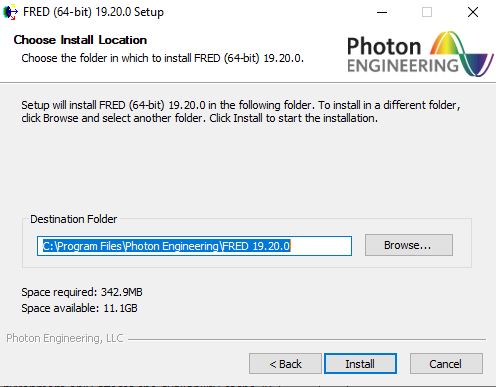
7. The next prompt allows the user to specify the directory into which FRED will be installed. A custom directory can be designated by pressing the Browse button on the dialog. Press the "Install" button to begin the installation of FRED and the previously selected components.
An installation progress bar will be displayed after installation begins and additional dialogs may be opened corresponding to the components selected for installation (ex. Hardware Key Driver component).
|
|
|
|
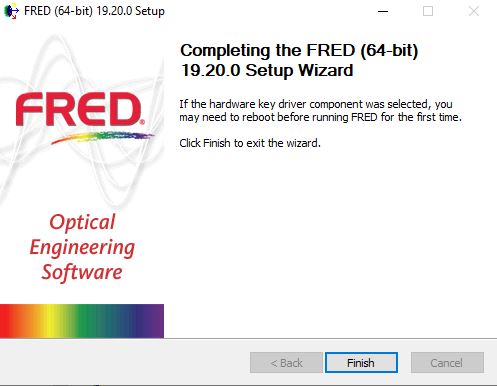
8. The installation of FRED and the selected components should now be complete. Press the "Finish" button to exit the installation wizard. You should now be able to access FRED using its desktop icon or by accessing it through the Windows Start menu.
|
|
|
|
9. If, upon starting FRED, you are presented with a license authorization dialog, this indicates that FRED is unable to communicate with an available license. The default FRED configuration will search for a local SuperPro license followed by a search for an available Sentinel license. The most common license installation issues are:
•When using a local SuperPro license, communication fails because the driver was not properly installed with administrative rights.
•When using a network SuperPro license, communication fails because the NSP_HOST environment variables were not configured on the client PC
•When using a network SuperPro license, communication fails because the license server cannot be contacted (firewall or other network restrictions)
Refer to the appropriate documentation (SuperPro or Sentinel) for your license type for more information.
|
Command Line Installation Options
The following options are available when installing FRED from a command line interface:
Silent Installation
FRED installations can be made silent by issuing the /S option when being run from the command line. Note that this is case sensitive.
FRED Installation without SuperPro
FRED installations can be performed without installing the SuperPro Hardware Key Driver component by using the /K option. Note that this is case sensitive.
FRED Remote Service
The FRED Remote Service can optionally be installed by adding the argument, /REMOTE=default. This will install the service, setup the rFredLogonUser account, and create the default transfer directory.
Installing to a Target Directory
When installing FRED from the command line, the /D argument can be used (must be the last argument) to specify the target installation directory. The example below demonstrates installing FRED from the command line silently, without the key drivers and into a specific directory.
FRED_installer.exe /S /K /D=C:\awesome programs\Photon Engineering\FRED VersionXX.XX
License Search Configuration
The FRED software is license protected using two different implementations based on technology provided by a third party vendor, Thales. In both implementations, the FRED software will not run unless one of the following conditions apply:
•The client PC is configured to look locally at itself (default behavior) and finds a valid hardware dongle or a software based license
•The client PC is configured to look for a network license server that has an available license of the requested type (Standard, Optimum, or MPC)
The specific usage, configuration and capabilities of the two implementations, SuperPro and Sentinel, are discussed in their respective sections of the Help. After completing your FRED installation, please refer to the SuperPro and Sentinel Help topics for specific license setup instructions appropriate for each technology (ex. additional settings required to properly configure a Network SuperPro license).
Assuming that your license(s) have been appropriately installed, FRED also offers a License Search Strategy utility that can be used to customize how FRED searches for an available license upon program startup. This utility is particularly useful for organizations which have multiple different FRED licenses available (license technology, local license, network license, mixed FRED versions). The License Search Strategy dialog (graphic below) can be accessed in the following ways:
1.In a FRED session, go to Help > License Search Strategy
2.If, upon startup, FRED cannot find an available license, the License Search Strategy dialog will be automatically displayed and the title bar of the dialog will contain the text, "currently not licensed".
.png)
The following table describes the available controls in each section of the License Search Strategy dialog:
|
Control
|
Description
|
Default
|
|
Search strategy to use on program startup
This section of the dialog serves two purposes:
1.It displays the license search strategy that is currently used by FRED on program startup.
2.It allows modification of the license search strategy definition, with changes being applied on the next program startup.
If the file-based strategy option is used, the License Technology Search Order and Sentinel License Search Strategy sections indicate the strategy specified by the file.
|
|
License Technology Search Order
|
Specifies which the license technology type from which a FRED license should be acquired and/or the order in which the license technologies should be searched. For example, when using the "Superpro then Sentinel" option:
1.FRED attempts to acquire a SuperPro license
2.If no license can be acquired, FRED attempts to acquire a Sentinel license
Search order options are:
•SuperPro only
•Sentinel only
•SuperPro then Sentinel
•Sentinel then Superpro
When searching for a SuperPro license, FRED's default behavior is to look for a license hosted locally on the client PC. However, additional environment variables and startup parameter options can be specified that provide additional control over the SuperPro license search process. Refer to the SuperPro Network License help topic for more information on SuperPro license search options.
|
Superpro then Sentinel
|
|
Sentinel License Search Strategy
When FRED searches for a license using the Sentinel technology platform, the user can supply specific criteria that an available license must satisfy in order to be acquired.
Each row in the Sentinel License Search Strategy spreadsheet corresponds to a single license criteria that must be satisfied in order for a license to be acquired. FRED will perform a Sentinel license search for each of the criteria in the spreadsheet, stopping its search when the first valid license can be acquired. The ordering of the criteria in the table, rows 0 to N, indicate the user's preference for licenses of different types (row 0 being the most preferred license, and row N being the least preferred license).
Right mouse click in the spreadsheet interface for controls that allow deleting or inserting Sentinel license search criteria.
When defining a Sentinel license search criteria, the following options are available:
|
Criteria
|
Description
|
|
FRED Version
|
Specifies the FRED version that the acquired license must allow. Options are MPC, Optimum and Standard.
|
|
Key Label
|
Corresponds to the Photon Engineering assigned key #. Enter the preferred key label # or enter "Any label" if there is no specific key label preference.
|
|
Key Serial #
|
Corresponds to the manufacturer assigned key serial #. Enter the preferred key serial # or enter "Any serial #" if there is no specific key serial number preference.
|
|
Key Location
|
Corresponds to the location where the acquired license must reside. Options are:
|
Anywhere
|
The license may be local to the client PC or may be a remote network license.
|
|
Local only
|
The license must be locally hosted on the client PC.
|
|
Remote only
|
The license must be a remotely hosted network license.
|
|
Host Name
|
Choose this option from the drop-down list and then overwrite the cell with the name of the PC hosting the license. The acquired license must be hosted by the PC with the supplied name.
|
|
Host IP Address
|
Choose this option from the drop-down list and then overwrite the cell with the IP address of the PC hosting the license. The acquired license must be hosted by the PC with the supplied IP address.
|
|
|
Key Type
|
Specifies the Sentinel license technology type (ex. hardware dongle vs. software license). Options are:
|
Any Sentinel Type
|
Use this option when there is no specific preference as to the Sentinel license type.
|
|
Dongle (HASP-HL)
|
Use this option when there is a preference to acquire a license from a hardware dongle.
|
|
Soft-Admin (HASP-SL-AdminMode)
|
Reserved for future use.
|
|
Soft User (HASP-SL-UserMode)
|
Use this option when there is a preference to acquire a license from a softkey.
|
|
The default Sentinel License Search Strategy is provided below. The interpretation of the search strategy is the following:
1.First, search for any available FREDmpc license. There are no requirements on key label, key serial #, key location or key type.
2.Next, search for any available FRED Optimum license. There are no requirements on key label, key serial #, key location or key type.
3.Last, search for any available FRED Standard license. There are no requirements on key label, key serial #, key location or key type.
The effective result of this default search strategy is that IF there is a Sentinel license of FRED (MPC, Optimum or Standard) available anywhere on your local network, the license will be acquired.
|
0
|
MPC
|
Any Label
|
Any Serial #
|
Anywhere
|
Any Sentinel Type
|
|
1
|
Optimum
|
Any Label
|
Any Serial #
|
Anywhere
|
Any Sentinel Type
|
|
2
|
Standard
|
Any Label
|
Any Serial #
|
Anywhere
|
Any Sentinel Type
|
|
|
Override the above strategy with the strategy in this file (.fls)
Toggle this option and use the "..." button to browse to a saved FRED License Search strategy file (.fls) if the license search strategy should by dynamically read from an existing .fls file upon program startup.
This option is persistent until the toggle is unchecked and saved by applying the OK button on the license search strategy dialog.
If the designated .fls file cannot be found on program startup, FRED will use the last license search strategy that was stored in the system registry.
|
|
|
|
Origin of the search strategy used during the current program startup:
The message presented in this section of the dialog indicates the source from which FRED retrieved the license search strategy information displayed in the dialog when opened.
If the message lists a file path, then FRED dynamically loaded the license search strategy from the indicated file upon startup.
If the message says, "system registry", then FRED retrieved the license search strategy from the system registry. This would correspond to the strategy defined the last time that the OK button was pressed on the License Search Strategy dialog.
|
|
|
|
Save to File
|
Writes the current Sentinel License Search Strategy specification to an output *.fls (FRED License Search) file. The FLS file can be loaded back into any copy of FRED to define the same search specification.
|
|
Load from File
|
Reads an existing *.fls file into the Sentinel License Search Strategy specification. This is a single file-read operation that populates the dialog settings. The strategy is not committed until the OK button is applied on the dialog.
|
|
|
|
SuperPro Dialog
|
Opens the SuperPro licensing dialog.
|
|
Sentinel Dialog
|
Opens the Sentinel licensing dialog.
|
|
|
|
Results Dialog
|
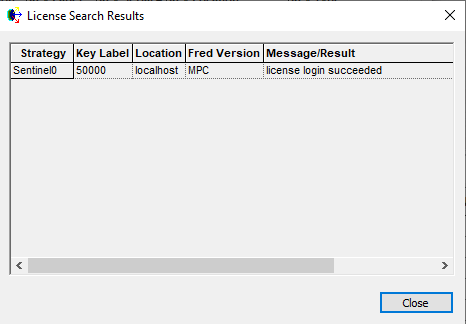
Opens the License Search Results dialog that displays a summary of the most recent attempt at acquiring a FRED license, including the license search strategy used, the FRED key # (Sentinel type only), the key location (Sentinel type only), the FRED version (Sentinel type only), and the message/result from the last search. This summary dialog can be helpful for debugging unexpected licensing problems.
In the image below, FRED was able to acquire an MPC license from a Sentinel type key (FRED key #50000) hosted locally on the computer.
In the image below, FRED was unable to acquire a license from a SuperPro type key. In this case, FRED was able to communicate with the key but there were no seats available.
.png)
|
|
|
|
OK
|
Accepts the changes to the License Search Strategy specification. The updated search strategy will be applied the next time that FRED starts up.
|
|
Cancel
|
Cancel the changes to the License Search Strategy specification and close the dialog.
|
Updating a Software License
Software licenses will periodically need to be updated with new authorization information supplied by Photon Engineering. If, for example, the yearly maintenance on a license is renewed, Photon Engineering will provide new license authorization information to the registered license End User (contact person for the license). This updated authorization information needs to be supplied to the FRED license in order to update its allowed maximum version limits. Other scenarios requiring a license update would be payment for a new license or upgrading from one FRED version to another.
If new license authorization information is received from Photon Engineering, the procedure for supplying the updated information to your FRED license will depend on the license technology for your key; either SuperPro or Sentinel. Please refer to the documentation for each license technology type for instructions on updating your FRED software license authorization.
Related Topics
SuperPro Licensing Overview
Sentinel Licensing Overview
|
Copyright © Photon Engineering, LLC
|
|