Single-user standalone licenses using the SuperPro implementation are managed through the use of a hardware USB dongle attached to the client PC running FRED. The SuperPro driver must be installed in order for FRED to communicate with the SuperPro USB dongle for the purpose of license validation. Refer to the FRED Installation Procedure for step-by-step instructions on downloading and installing the FRED software with the Hardware Key Driver component.
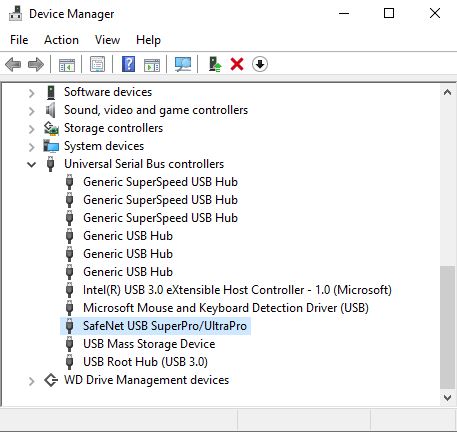
Verifying the SuperPro Driver Installation After completing the FRED installation process with the Hardware Key Driver component selected: 1.Plug the USB dongle into an active USB port on the client PC. If this is the first time that the SuperPro driver has been installed on the client PC, Windows may automatically finish setting up the USB device at this point. 2.Inspect the USB dongle visually to confirm that the light on the USB dongle is illuminated. 3.Open the Windows Device Manager and check the Universal Serial Bus Controllers group for a device labeled "SafeNet USB SuperPro/UltraPro"
After confirming that the USB device is properly recognized by Windows, start FRED using the Windows desktop icon or from the Windows Start menu. Unless you are presented with a license authorization dialog, then FRED has successfully acquired a license. Verify that you are able to create a new FRED document by navigating to File > New > FRED Document.
Installation and Licensing Problems If, upon starting FRED, you are presented with the License Search Strategy dialog, this indicates that FRED was unable to communicate with the SuperPro USB dongle attached to the client PC. The following actions may be taken to resolve the issue: •Verify that the SuperPro driver installation was successful, as described in the previous section. •Remove the USB dongle and restart the PC. After restarting, plug the USB dongle back into the PC and verify that the device is recognized in the Device Manager list. •Remove the USB dongle and re-run the FRED installation file with Administrative privileges (or find an IT administrator with sufficient privileges). Perform the device verification procedure again. •Remove the USB dongle and, with Administrative privileges, run the "Sentinel Protection Installer.exe" found in the <FRED install directory>\Utilities folder. Follow the prompts (choose the Modify option, if proposed) and make sure that Sentinel System Driver > USB System Driver option is selected during custom installation. Perform the device verification procedure again. •If the client PC has been previously configured for use with a Network license, be sure to remove any NSP_HOST environment variables that may still be active. This environment variable will force FRED to search across the network for a license rather than looking locally on the client PC.
|