|
Description
The Dashboard offers a convenient way to access some of FRED's most commonly used functions. When you open FRED for the first time, the Dashboard appears as shown below.
.png)
This Dashboard is organized into the following sections:
•Quick Start
•Help & Learning Resources
•Recent Files
•Pinned Files
•License
•Tip of the Day
Quick Start
The Quick Start section displays shortcuts to working with files and setting your preferences.
|
Icon
|
Shortcut from Menu
|
|
New Document
|
File > New FRED document
|
|
New Script
|
File > New Script document
|
|
Open File
|
File > Open
|
|
Import CAD
|
File > Import > Import CAD File
|
|
Import Optics
|
File > Import > Import Optics File
|
|
Preferences
|
Tools > Preferences
|
For detailed help on these specific functions, please see the File Commands and Tools - Preferences sections of this Online Help.
Help & Learning Resources
The Help and Learning Resources section displays shortcuts to some helpful resources both online and within FRED.
|
Icon
|
Shortcut from Menu
|
|
FRED Overview
|
Opens a document that provides an overview of the entire application. Dashboard shortcut for menu selection: Help > Overview (PDF).
|
|
Tutorials
|
Opens FRED’s Online Help. Dashboard shortcut for menu selection: Help > Help Topics.
|
|
Sample Files
|
Navigates to the current release’s Resources/Samples folder. Dashboard shortcut for menu selection: Help > Browse Sample Files.
|
|
Website
|
Opens www.photonengr.com
|
|
New Features
|
Opens a document that lists all the latest changes and enhancements to FRED. Dashboard shortcut for menu selection: Help > New Features (PDF).
|
Recent Files
The Recent Files section lists the last four files you have opened. You can open any of the files just by clicking on the file name. The list of Recent Files also displays below the Print options in the File menu and is described in more detail in the File - Recent Files section of this Online Help.
NOTE: If you are disconnected from your network, any networked recent or pinned files are removed from the list.
Pinned Files
The Pinned Files section, just below the list of your most recently opened files, provides a convenient way to easily access a list of important or commonly-used files. Just click on the file name to open the file.
To add a file to the list:
|
1.
|
|
First, open the file to be pinned. Make sure it is the selected / active file in the Document Window.
|
|
2.
|
|
Select File > Add to Pinned File List from the menu.
|
|
3.
|
|
The file immediately appears in the list of Pinned Files on the Dashboard and in the list of Pinned Files at the bottom of the File menu.
|
To remove a file from the list:
|
1.
|
|
First, open the file to be removed. Make sure it is the selected / active file in the Document Window.
|
|
2.
|
|
Select File > Remove From Pinned File List from the menu.
|
|
3.
|
|
The file is immediately removed from the list of Pinned Files and from the list of Pinned Files at the bottom of the File menu.
|
NOTE: If you are disconnected from your network, any networked recent or pinned files are removed from the list.
License
The License section provides information about your FRED version and license.
|
Option
|
Description
|
|
Check for Newer Version
|
You can check for newer FRED versions or updates by clicking on the Check for Newer Version button. The Check for Updates dialog box displays version information.
If a newer version of FRED is available, the Download Release button is enabled. Click on the Download Release button to access the Download Manager on Photon Engineering’s website and begin the download process.
|
|
License Info
|
You can click on the License Info button to open the Software License Authorization dialog box.
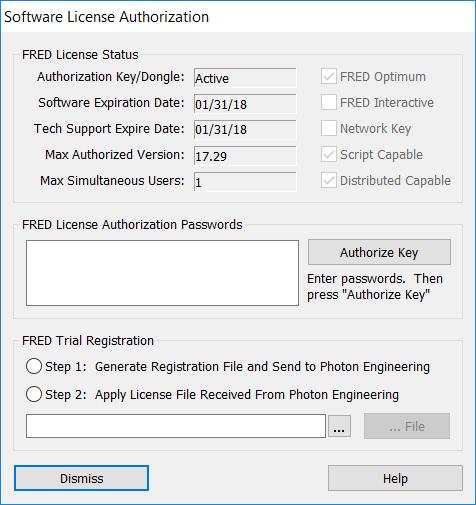
For more help with this dialog box, please read the Help - Authorization section of this Online Help.
|
|
Support Status
|
If your technical support expiration date is in the past, Support Status displays as “Expired”. If your technical support expiration date is in the future, Support Status displays as “Current”.
|
|
Support Expiry
|
This displays the date that your FRED support agreement expires.
|
Tip of the Day
A new Tip of the Day displays each time FRED is opened.
Navigation
You can control the Dashboard’s display behavior in several ways:
|
Method
|
Description
|
|
On the Dashboard
|
You can select or deselect the two options provided on the Dashboard:

If Always show this page at startup is checked, the Dashboard displays each time you open FRED. Uncheck if you do not want to see the Dashboard automatically upon startup.
If Close whenever a FRED file is open is checked, the Dashboard automatically closes when you open a file. Uncheck if you want to keep the Dashboard open along with your open FRED files.
|
|
From the Tools Menu
|
Select Tools > Preferences from the menu. Then, select the Miscellaneous tab.
By default, Show dashboard on startup is checked. The Dashboard displays when FRED is opened for the first time. Uncheck this option if you do not want to see the Dashboard automatically upon startup.
By default, Close dashboard on open file is unchecked. The Dashboard remains open as you work in FRED. Check this option if you want the Dashboard to automatically close when you open a file. (Keep unchecked if you want to keep the Dashboard open along with your open FRED files.)
.png)
|
|
On the Document Tab
|
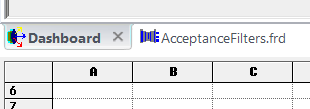
Click on the X in the Dashboard tab in the bottom left corner of the document screen above the Output Window.
|
|
From the Toolbar
|
Click on the Dashboard icon on the File Toolbar. (This acts as a toggle. Click once to close. Click again to open.)

|
|
From the Help Menu
|
Select Help > Close Dashboard from the menu. (This acts as a toggle. If the Dashboard is closed, the menu option says Open Dashboard.)
.png)
|
Related Topics
File Menu Command Summary
File - Pinned Files
File - Recent Files
Graphical User Interface Summary
Help Menu Command Summary
Tools - Preferences
|
Copyright © Photon Engineering, LLC
|
|