OpenGL is a software interface to the graphics hardware (video board) that provides a very fast and portable 3D graphics and modeling library. Each video board manufacturer supplies its own drivers which implement the software interface. In some cases the OpenGL driver has one or more bugs that can cause unusual behavior in the 3D rendering view of the optical model. A defect in the driver can sometimes cause FRED to hang or crash, though FRED adheres strictly to the OpenGL standard. Several ways to deal with video board and/or OpenGL driver problems are described below.
There are currently four possible solutions to a problem caused by a defective OpenGL driver.
•Adjust the video board settings via the advanced options on the settings page of the display properties. •Adjust the OpenGL pixel-rendering mode in the FRED preferences. •Download and install the latest video board drivers for the video board from the video board or computer manufacturer. •Install a new video board.
The first two options are quick fixes that will allow you to immediately get back to work. However, they may slightly adversely affect the speed and performance of the 3D rendering. The third and forth options are preferred and should be considered if the first two options result in slower 3D View operation.
Adjust the Video Board Settings This option is a simple adjustment to the Windows operating system which specifies the operating system to use the video board in a safer, software-only video mode instead of the hardware accelerated mode. As a system level adjustment this setting affects all programs running on the system. Most users will not notice a difference in performance of their applications, but some high performance applications may have reduced rendering speed. If this solution results in undesirable behavior in some applications then we suggest the second solution discussed below.
To implement this solution please take the following steps:
•Right click anywhere in the desktop and select the Properties option in the pop-up menu. This opens the Display Properties dialog box. •Select the Advanced options in the Settings tab of the Display Properties dialog box.
The pages in the Advanced display properties dialog will have different options depending on the video board but five of the pages will be available on all computers with recent windows operating systems: General, Adapter, Monitor, Troubleshooting, and Color Management pages.
•Select the Troubleshooting page and adjust the Hardware Acceleration slide bar down one step at a time until the FRED visualization problems cease.
Typically you will have to adjust the slide bar down to the lowest, first, second, or third setting. The slider adjusts which graphics acceleration processes are handled by hardware and which processes are handled by software. The Software solution is more robust but slower than the hardware acceleration solution.
NOTE: Depending on the video card installed in the computer there may also be an OpenGL Properties page in the Advanced display properties dialog. If so, problems may possibly be fixed by adjustment of settings on the OpenGL properties page. Please consult the video card manufacturer for support on the OpenGL properties page.
Adjust the OpenGL pixel-rendering mode This solution will change the OpenGL driver mode used by FRED but will not affect the OpenGL driver options for other programs using OpenGL.
This solution has two steps. In the first step, a utility is used to determine what OpenGL pixel render mode is stable using the current OpenGL driver and video board. In the second step, the pixel render mode identified in the utility is selected for FRED in the FRED Visualization preferences page.
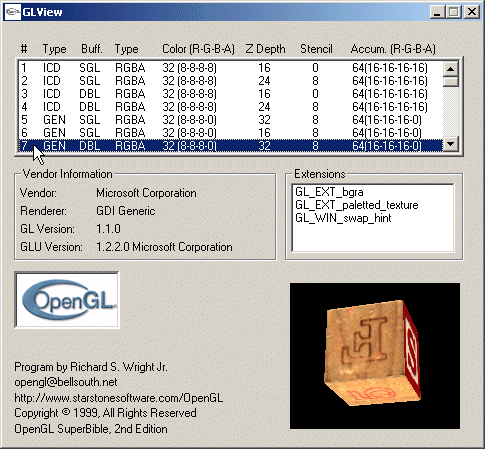
•Run the GLView.exe utility located in the Utilities folder of your FRED installation disk or from the Utilities folder of your FRED installation directory.n.
The GLView utility dialog window is shown below:
The GLView dialog lists a number of pixel rendering modes and attributes. The ICD mode types are hardware accelerated modes. The GEN mode types are software modes that do not have hardware acceleration. You should choose a mode of type GEN. The mode chosen MUST have a double buffer indicated with DBL in the Buff column. It should also have a type of RGBA. If the mode is good, the letter block in the lower left corner will roll smoothly without any flickering. If the mode is bad, the letter block will flicker. The speed that the letter block rolls is a rough indicator of how fast the mode will operate.
Some of the modes listed are not available. If the mode is available, then a rolling letter block is shown in the window in the bottom right corner of the dialog. If the mode is not available, then a red X is drawn instead.
•Once a good mode has been identified, make note of the mode number in the left most column. •Close the GLView utility and start FRED, but do not load a FRED file. •Open the Preferences menu Visualization tab (Menu > Tools > Preferences > Visualization Tab) and enter the mode number into the User box of the Pixel format option.
NOTE: If you later update your video board driver, you may want to update your FRED Preferences by entering an OpenGL pixel rendering mode of 0 (zero). This is the default setting and tells FRED to use the default aggressive rendering mode.
Download and install the latest video board drivers Often there is a new video board driver that has enhanced OpenGL performance available from the video board manufacturer. FRED uses OpenGL extensively, but if FRED is having problems with the OpenGL drivers then it is likely that other programs using OpenGL will have trouble with the drivers as well. In this case the manufacturer may have addressed the problem with an improved driver. Please consult the video driver manufacturer’s website for updates and instructions for installation.
|
.png)